📖 PackLite HowTo
How to Import Gear into PackLite
Quickly add multiple gear items from spreadsheets.
What You Will Do
This guide explains how to bulk import gear items from spreadsheet files. It's much faster than adding items one by one, especially if you're migrating from another app or have existing gear data in Excel.
Before You Start
- You are logged in to PackLite.
- You have a CSV or XLSX file with your gear data.
Step 1 - Open Gear Import
Navigate to the Import page to upload your gear file.
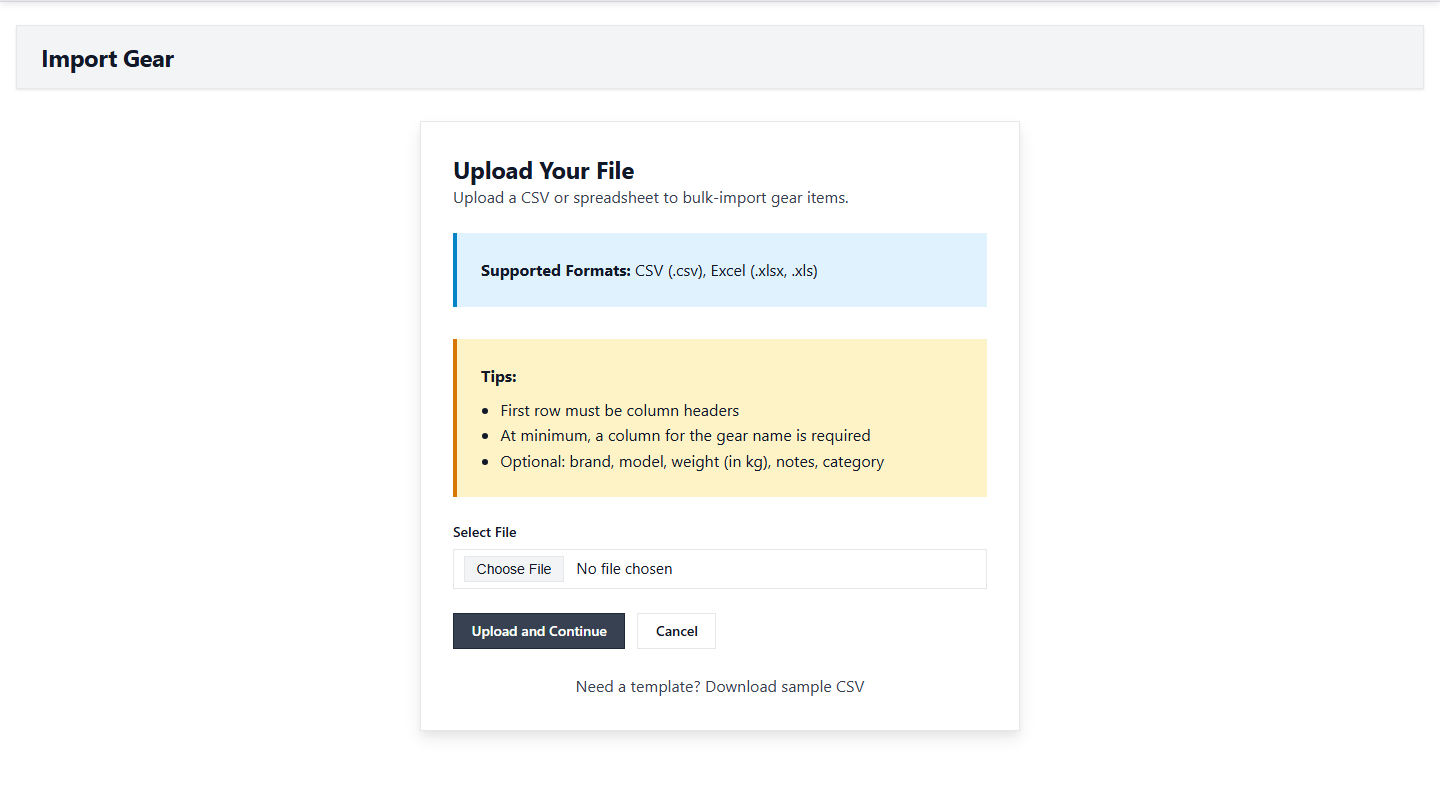
Tip: Both CSV and XLSX spreadsheet formats are supported.
After Completion
- Your gear items are imported into your inventory.
- Review the imported items in your Gear list.
- Check that weights and categories imported correctly.
Troubleshooting
- Import failed - no header row: Make sure your spreadsheet has a header row.
- Weight values invalid: Weight values should be numbers with units (e.g., 500g, 1.5kg).
- Import error message: Check the error message for column names or format issues.